From Hand Lettering to a Custom Font: How AI Helps Designers Create Their Own Fonts
Turn your own lettering into a reusable font: prepare a source, generate a draft, refine individual characters, and preview the result before downloading.
Based on the supplied article and reviewed against MakeFont’s current AI input, character editor, and TTF download implementation. Technical references checked October 19, 2026. Generated images are explanatory illustrations; no new product-performance test is claimed.
Quick answer
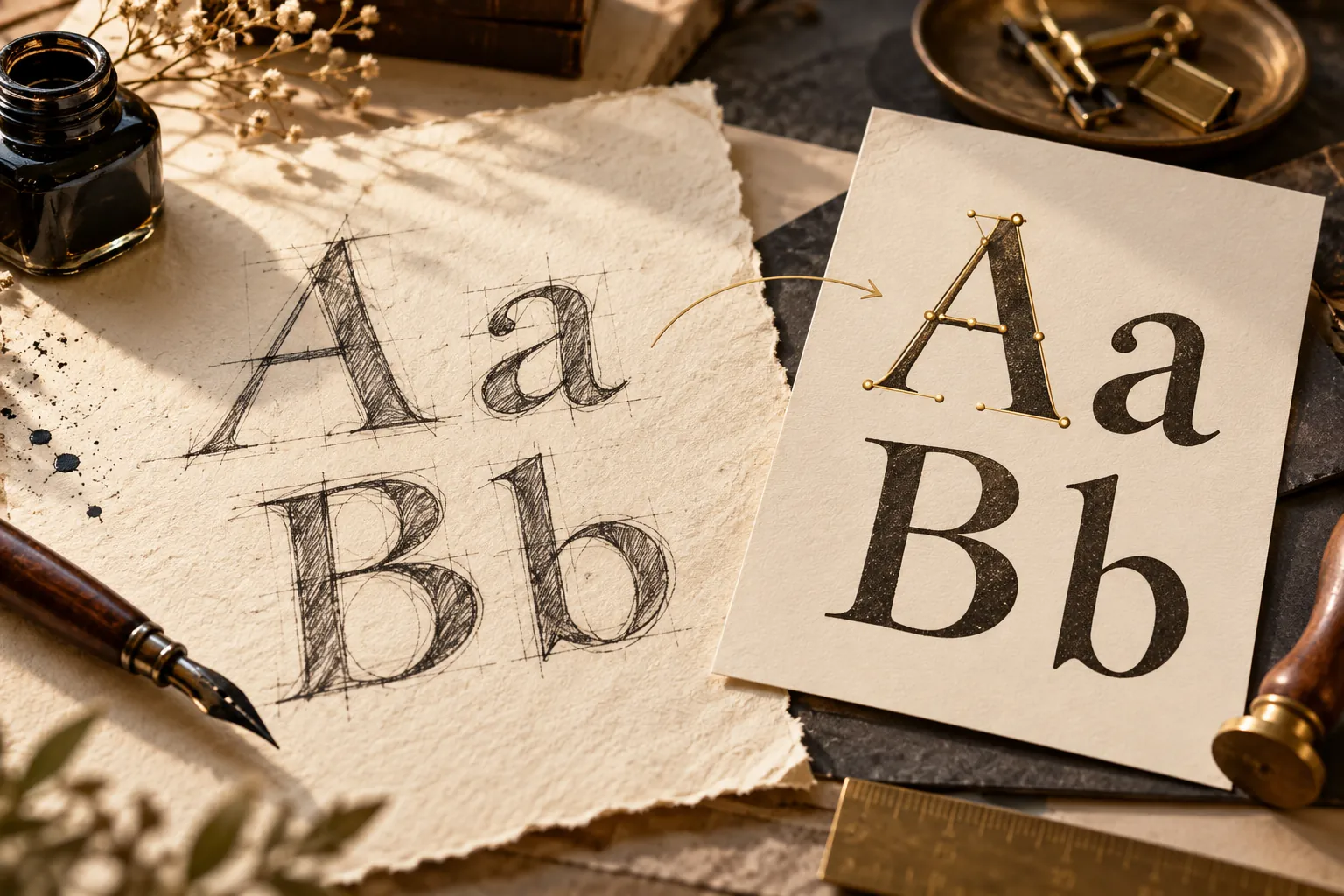
To turn your handwriting into a custom font with AI, prepare a clear lettering sample, generate a draft, inspect and edit individual characters, then test words before downloading the font. Treat generation as a starting point: you still need to review the shapes, character coverage, and spacing.
Use Handwriting to Font for a handwriting sheet, or Image to Font for separated letter artwork. MakeFont lets you review the generated Font Profile and build a downloadable TTF from the characters you have checked.
From lettering to a reusable font
Have you ever created a handwritten title, sketched a unique alphabet, or designed lettering that you wished you could use across different projects?
A custom font makes that possible. Instead of recreating the same letters by hand every time, you can turn your lettering into a reusable font that works across compatible design applications.
With the development of AI-assisted font creation tools, this process is becoming more accessible to designers, illustrators, independent creators, and small businesses.
In this guide, we'll explore how to turn your own lettering into a downloadable font, why character-level editing matters, and how to build a font that feels uniquely yours.
Why Create Your Own Font?
Fonts do more than communicate words. They help establish a visual identity, express personality, and make creative work more recognizable.
A custom font can be useful in many situations:
- Brand identity: Create distinctive lettering for logos, packaging, and marketing materials.
- Graphic design: Use your own lettering in posters, editorial layouts, and digital artwork.
- Handwritten projects: Turn your handwriting into a font for invitations, journals, and personal stationery.
- Illustration and content creation: Give titles, social media graphics, and creative projects a consistent visual style.
- Independent products: Develop a recognizable typographic style for digital products, merchandise, or creative portfolios.
For designers and creators, the advantage is not simply having a different font. It's having a font that starts with their own visual ideas.
For work you plan to distribute or use for a business, check the rights to the source lettering and the acceptable-use requirements. Creating a font file does not itself grant permission to reuse someone else’s artwork.
What Is an AI Font Generator?
An AI Font Generator is a tool that helps transform lettering, handwriting, or other supported visual inputs into a digital font.
Traditional font creation can involve drawing individual glyphs, refining their shapes, adjusting spacing, and preparing font files. Depending on the tool and the complexity of the project, this process can require considerable time and specialized knowledge.
An AI-assisted approach helps simplify the initial creation process. Rather than building every character entirely from scratch, you can start with your own lettering and use the generated font as a foundation for further refinement.
However, generating a font is only part of the process. The ability to inspect and edit individual characters is also important, especially when the font will be used in professional design work.
How to Turn Your Lettering into a Custom Font
The process can be divided into four practical steps.
Start with Handwriting to Font when you have a handwriting character sheet. For an illustrated alphabet or separated letter artwork, choose Image to Font. The source you have determines the most useful starting guidance.
Step 1: Prepare Your Lettering
Start with lettering that reflects the style you want to create.
You might use handwritten characters, a carefully designed alphabet, or another supported image of your lettering. Clear, distinguishable characters generally make it easier to evaluate the generated results.
Before uploading your image, consider the visual qualities you want to preserve:
- The overall character shape and proportions
- The thickness and consistency of strokes
- The spacing and rhythm between letters
- The distinctive details that make your lettering recognizable
You don't need to begin with a professionally designed typeface. The goal is to give the font creation process a clear visual starting point.
Keep an untouched original and use a clear PNG, JPG, or WEBP working image up to 20 MB. The source-image preparation checklist covers spacing, contrast, and complete strokes; the PNG, JPG, and WebP guide helps you choose an export format.
Step 2: Generate Your Font with AI
Once your lettering is ready, upload it to an AI-assisted font creation tool.
The tool uses your input to help create a digital font, giving you a starting point that can be refined rather than requiring you to construct every character manually.
This approach is especially useful for creators who have a lettering style in mind but want a more accessible way to turn it into a reusable font.
The generated result should be treated as a draft to review, not automatically as a finished professional typeface.
Step 3: Edit Individual Characters
This is an important step that can make a difference in the final result.
Even when a font looks consistent at first glance, individual characters may need adjustments. A particular letter might look too wide, a stroke may feel uneven, or a character may not match the style of the rest of the alphabet.
With MakeFont, you can edit individual characters directly rather than being limited to accepting the generated result as it is.
This gives you more control over the final appearance of your font.
When reviewing your characters, pay attention to:
- Shape consistency: Do the letters feel like they belong to the same typeface?
- Visual balance: Do individual characters look disproportionately large, small, wide, or narrow?
- Style preservation: Does the font retain the personality of your original lettering?
- Readability: Are the characters distinguishable when used in words and sentences?
You don't necessarily need to make every character perfectly uniform. Handwritten and expressive fonts often benefit from retaining some of their natural irregularities.
The objective is to create a font that feels intentional while preserving the qualities that made your lettering interesting in the first place.
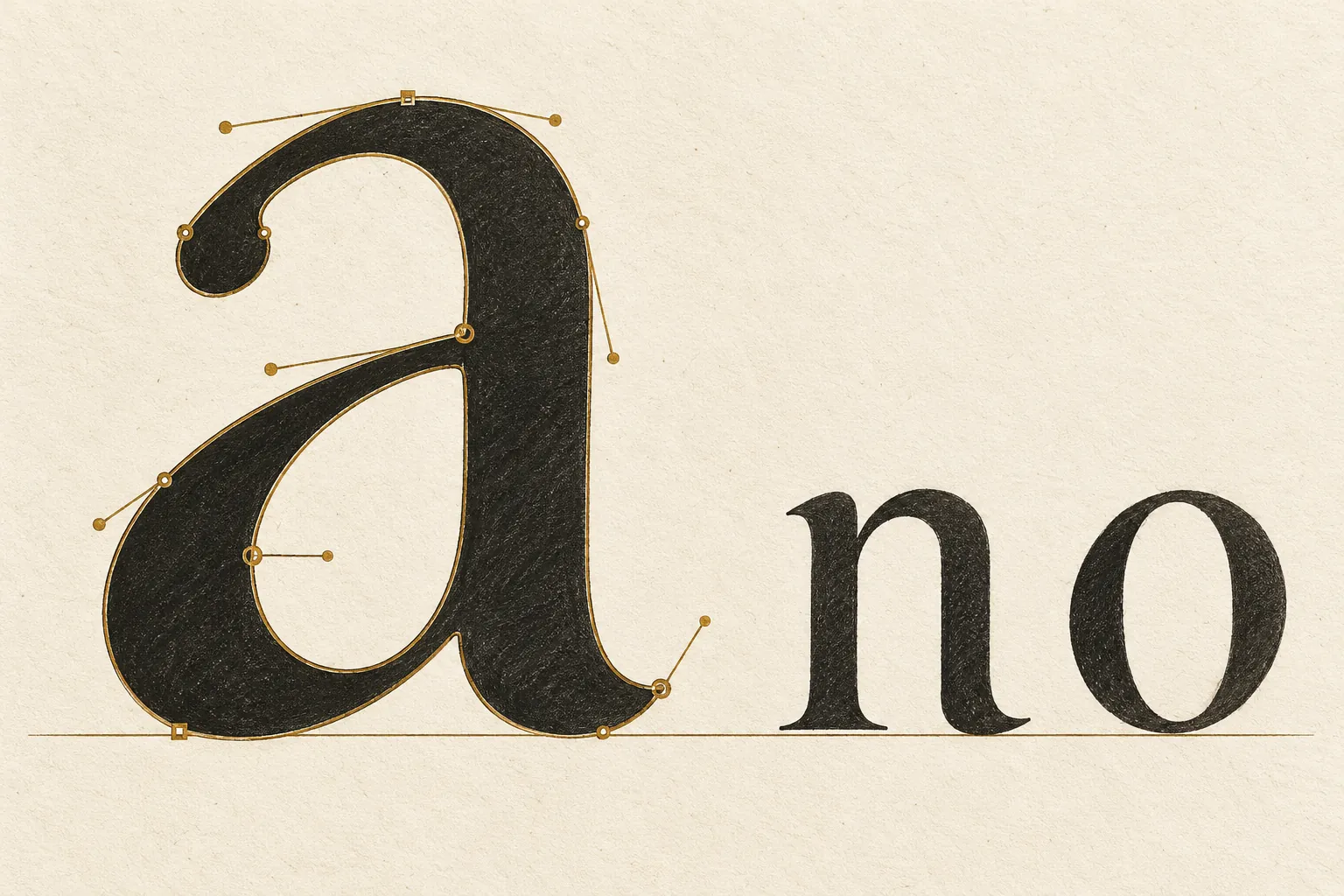
A glyph is the visible form used to display a character. Microsoft’s OpenType character-mapping specification (opens in a new tab) explains how character codes connect to glyphs. Check both the shape and its label: an attractive O still needs to be mapped as a letter rather than the digit 0.
Step 4: Preview and Download Your Font
After reviewing your characters, test the font using sample text.
Looking at individual letters is useful, but seeing them together in words and sentences can reveal issues that are difficult to notice in isolation.
Try different combinations of uppercase and lowercase letters, numbers, and other characters available in your font.
Once you're satisfied with the result, download the generated font file and use it in compatible applications that support the file format.
Your custom lettering can then become part of a reusable design resource instead of remaining an image that you have to recreate for each new project.
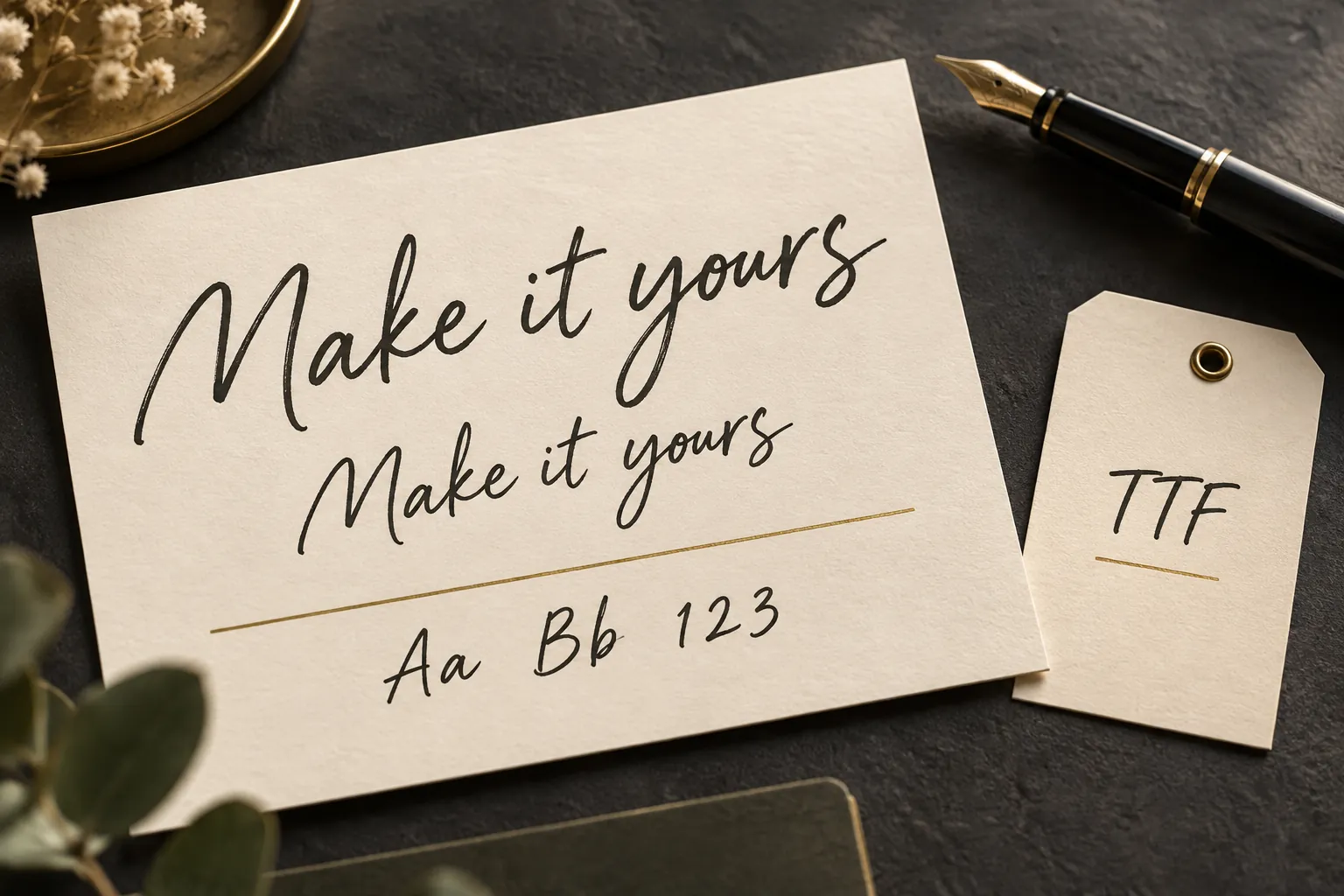
In the current MakeFont workflow, TTF is the downloadable font file; WOFF2 supports the local web preview. Rebuild after changing a character so the file reflects the current glyphs. Use the handwriting-font testing guide to check words, punctuation, small sizes, and missing characters.
After downloading, test the font in the application where you intend to use it. On a Mac, Apple’s Font Book installation and validation guide (opens in a new tab) explains how to install a font and review validation warnings. Passing a file check does not replace checking readability and spacing.
Why Character-Level Editing Matters
AI can help accelerate font creation, but designers still need control over the details.
A font is a collection of individual glyphs that must work together. One poorly shaped character can affect the appearance of an entire word, even if the other characters look good.
This is why the ability to edit individual characters matters.
It provides a practical middle ground between two approaches: manually constructing an entire typeface from scratch and accepting an automatically generated font without further refinement.
For independent designers and creators, that balance can make custom font creation more approachable while preserving creative control.
It's also important to remember that editing characters is only one part of professional type design. More advanced projects may require additional work on spacing, kerning, language coverage, and font quality, depending on the intended use.
For example, the space a character occupies includes more than its inked outline. The OpenType horizontal-metrics specification (opens in a new tab) distinguishes advance widths and side bearings. If two letters look awkward together, changing the outline alone may not solve the spacing.
Who Can Benefit from Creating Custom Fonts?
Custom font creation is useful for more than professional type designers.
Graphic designers can develop distinctive lettering for posters, layouts, and visual identities.
Brand designers and small businesses can explore custom typography that supports a brand's personality.
Hand lettering artists can turn their original lettering into a reusable digital asset.
Illustrators and content creators can develop a consistent visual style for titles, artwork, and other creative materials.
Hobbyists and independent creators can experiment with their own handwriting and discover new ways to use it.
The best starting point depends on your goal. A font intended for a short poster headline may have different requirements from one intended for long-form text or a brand's everyday communications.
Meet MakeFont: An AI-Assisted Font Creation Tool
MakeFont is an AI-assisted font creation tool for designers and creators.
It helps you turn your own lettering into editable, downloadable fonts, with control over individual characters.
Rather than treating font generation as a one-click process with no room for refinement, MakeFont supports a workflow in which you can generate a font, review its characters, make adjustments, and download the result.
This approach is useful when you want to preserve the character of your original lettering while turning it into a more practical digital asset.
Whether you're exploring a personal handwriting style, creating lettering for a design project, or developing a distinctive visual identity, starting with your own lettering gives you a more personal foundation than simply choosing an existing font.
Ready to turn your lettering into a font?
Try MakeFont and explore how AI-assisted font creation can help bring your lettering into your creative workflow.
Start with the handwriting workflow for your own character sheet, or the letter-image workflow for separated lettering artwork. Inspect the published MakeFont examples to understand the scope of the demonstrated results; a small example is not proof of a complete production-ready typeface.
Final Thoughts
Creating a custom font doesn't have to begin with a blank canvas or a complex professional font editor.
By starting with your own lettering, using AI to assist with font creation, and refining individual characters where necessary, you can develop a reusable digital font that reflects your creative style.
For designers and creators, the real value lies in combining a more accessible creation process with the ability to make the result your own.
Technical references used in this guide
- Microsoft OpenType cmap (opens in a new tab): character-code-to-glyph mapping and missing characters.
- Microsoft OpenType horizontal metrics (opens in a new tab): advance widths and side bearings.
- Apple Font Book guide (opens in a new tab): font installation and validation on macOS.
These references explain font structures and installation. They do not endorse MakeFont or establish the quality of a generated font. References checked October 19, 2026.
Questions before your first font conversion
Make your lettering reusable
Start with your own handwriting
Prepare a clear source, review the draft character by character, and test the words you need before downloading.
Choose your next step
Start with the source you already have
Prepare the source image
Check spacing, contrast, complete strokes, and capture quality before starting.
Read the preparation guideTest a handwriting font
Review words, sizes, spacing, coverage, and the downloaded file.
Read the testing guide