Image-to-Font Converter vs Font Identifier: Which Tool Do You Need?
An image-to-font converter helps create a new, reusable font from letter artwork.
Written by the MakeFont Team. Product descriptions reflect the documented workflow; font and software references are linked beside the relevant explanations.
Quick answer
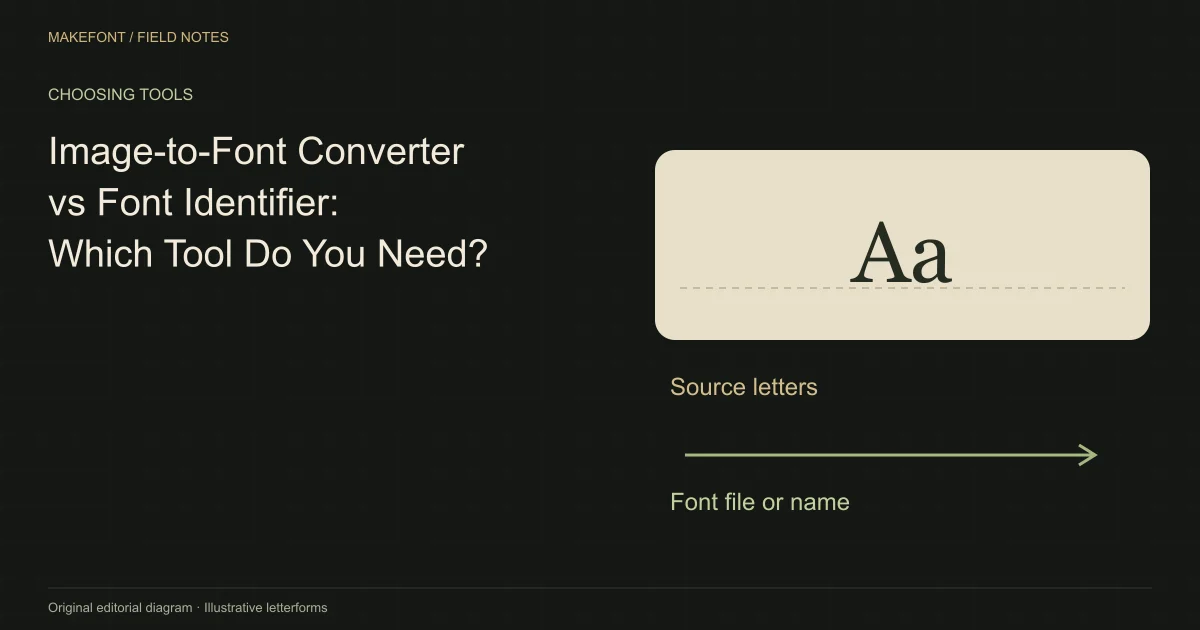
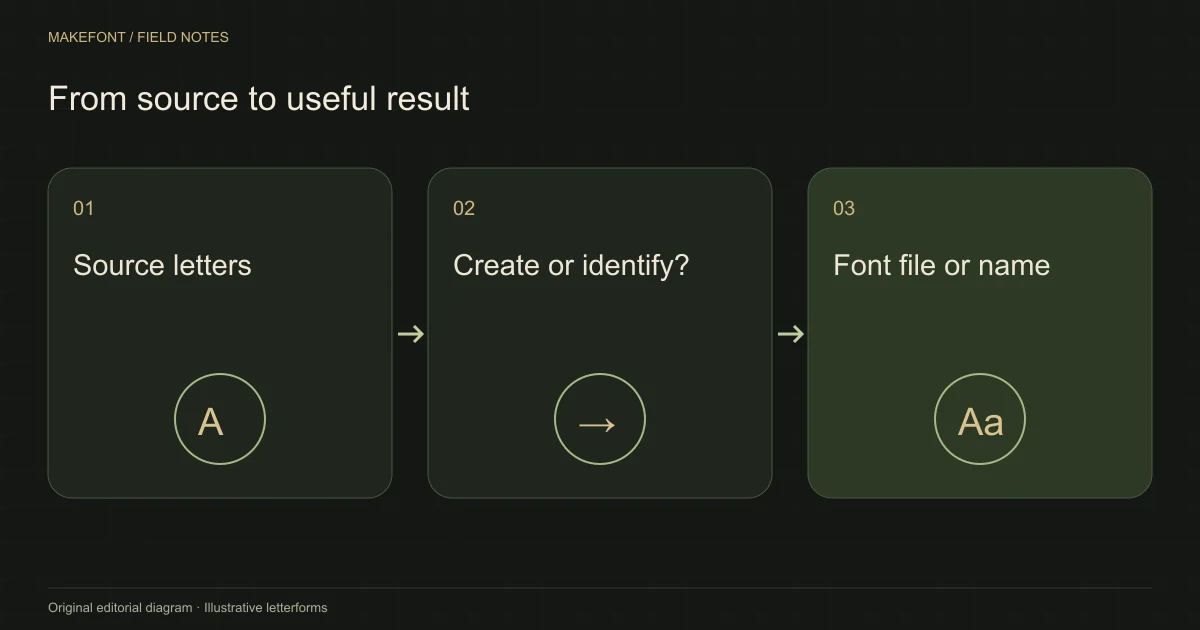
An image-to-font converter helps create a new, reusable font from letter artwork. A font identifier searches for an existing typeface that resembles letters in an image. Choose by the result you need: a font file you can type with, or the name of a typeface you want to find.
Start with the question behind your image
Suppose you photograph your own alphabet. You want to type a new birthday message in that handwriting. Finding a similar commercial typeface will not reproduce your particular shapes; you need a font-making workflow that turns the artwork into mapped characters.
Now suppose you photograph a shop sign and want to identify its typeface. Reconstructing a new alphabet is unnecessary if your aim is to locate the original. An identifier may suggest candidates, but a match is not proof of the font's identity or permission to use it.
A third task is extracting the words from the photograph. That is text recognition, usually called OCR. It produces text content rather than a reusable version of the lettering style. These three jobs can start with the same picture while requiring different outputs.
Follow the output, not the tool's name
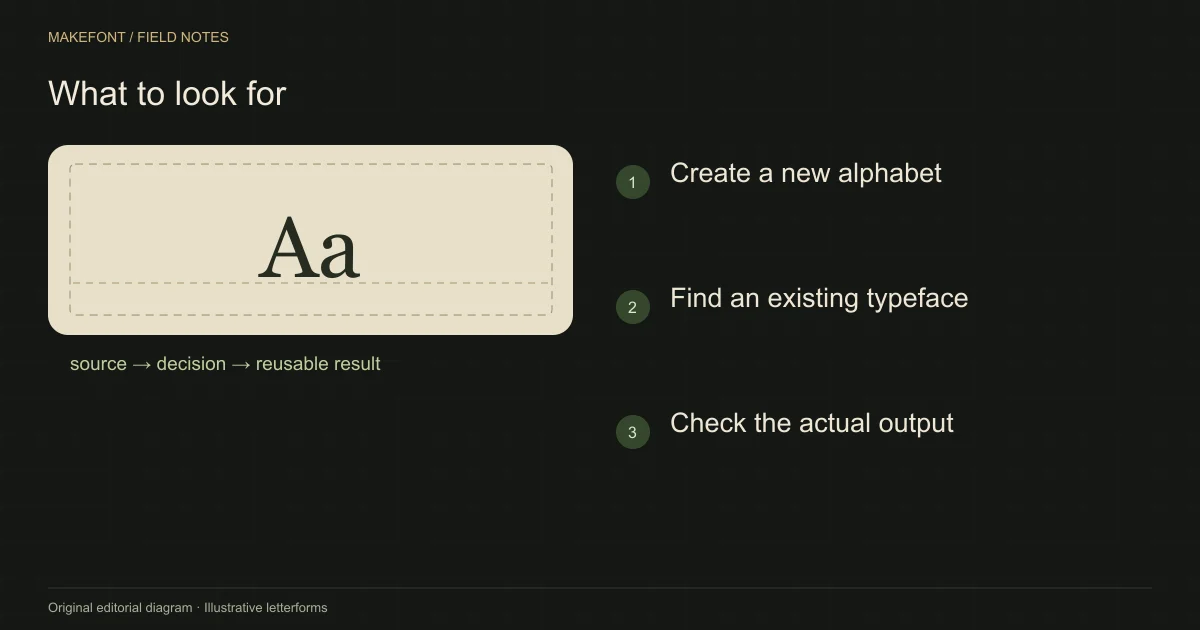
Check what the final download actually contains. A PNG specimen, a list of font names, and a TTF file serve different purposes. The OpenType font-file specification (opens in a new tab) describes a structured font containing tables; renaming a picture with a .ttf extension does not create that structure.
- To find an existing design, look for identification results and links to legitimate sources.
- To recover the words, look for editable text output.
- To create your own design, look for character mapping, editable shapes, text preview, and a font-file export.
A useful converter should let you inspect which drawing is assigned to which character. A beautiful preview is insufficient if typing a lowercase a produces a different letter.
Where MakeFont fits
MakeFont Image to Font is a creation workflow for turning source lettering into an editable font project. For paper handwriting, the Handwriting to Font workflow is the more relevant starting point. MakeFont provides AI assistance, character editing, preview, and TTF download; it should not be treated as a search engine for the identity of an unknown commercial typeface.
Start with your own letterforms or material you are permitted to reproduce. Inspect the generated characters individually, particularly shapes absent from the original sample. AI assistance does not establish ownership or guarantee that every proposed letter suits your design.
A simple decision before committing
Write down one sentence describing success: “I can type a new sentence in my handwriting,” or “I know the name of the font in this photograph.” Then check whether the tool demonstrates that exact result.
For a new font, type an unfamiliar sentence in the preview, download the available font file, and test it in your intended application. Consult current MakeFont plans for account and download conditions before building a large project. This small trial reveals more than comparing a page of attractive alphabet images.
Technical references
These references explain the relevant formats, software behavior, or concepts. They do not endorse MakeFont or guarantee the quality of a generated font.
Questions before your first font conversion
Make your own font
Start with letters you can edit
Choose a source, inspect the character shapes, and preview your font before downloading the TTF.
Choose your next step
Start with the source you already have
Prepare a clear source
Capture and organize the letters before font creation.
Read the image preparation guideTry the font in real text
Use a repeatable specimen to inspect the finished file.
Read the font testing guideCurrent plans and downloads
Check current account limits before starting a new project.
See MakeFont plans